Best IDEX 3D Printers for Productivity and Mirror Printing
What Is an IDEX 3D Printer and Who Needs One?
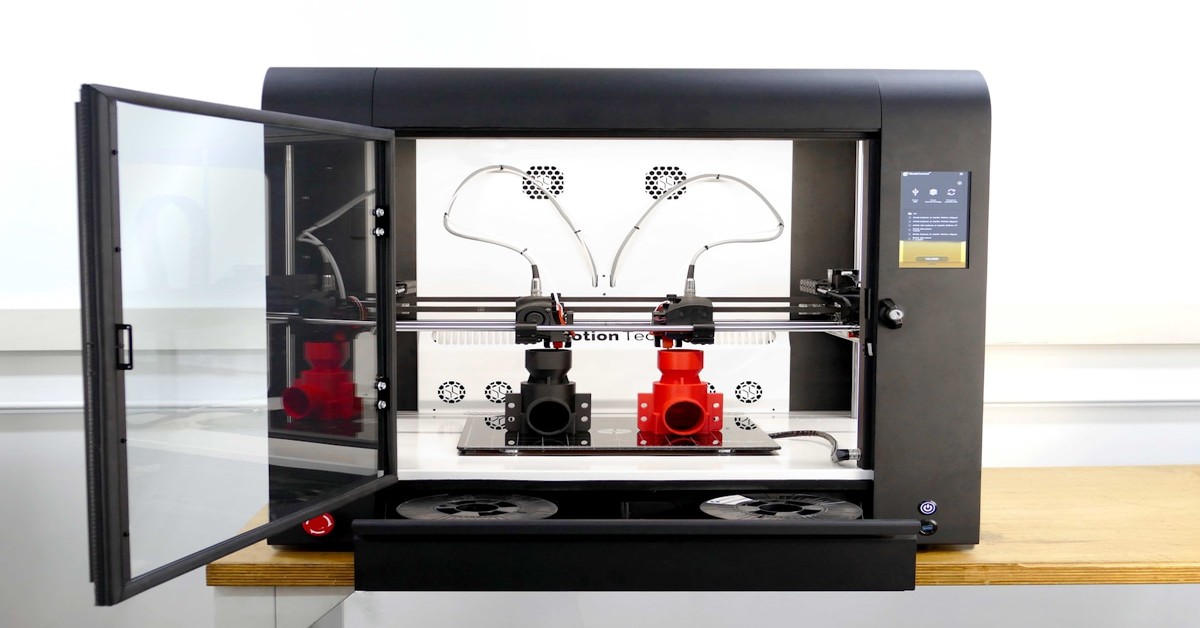
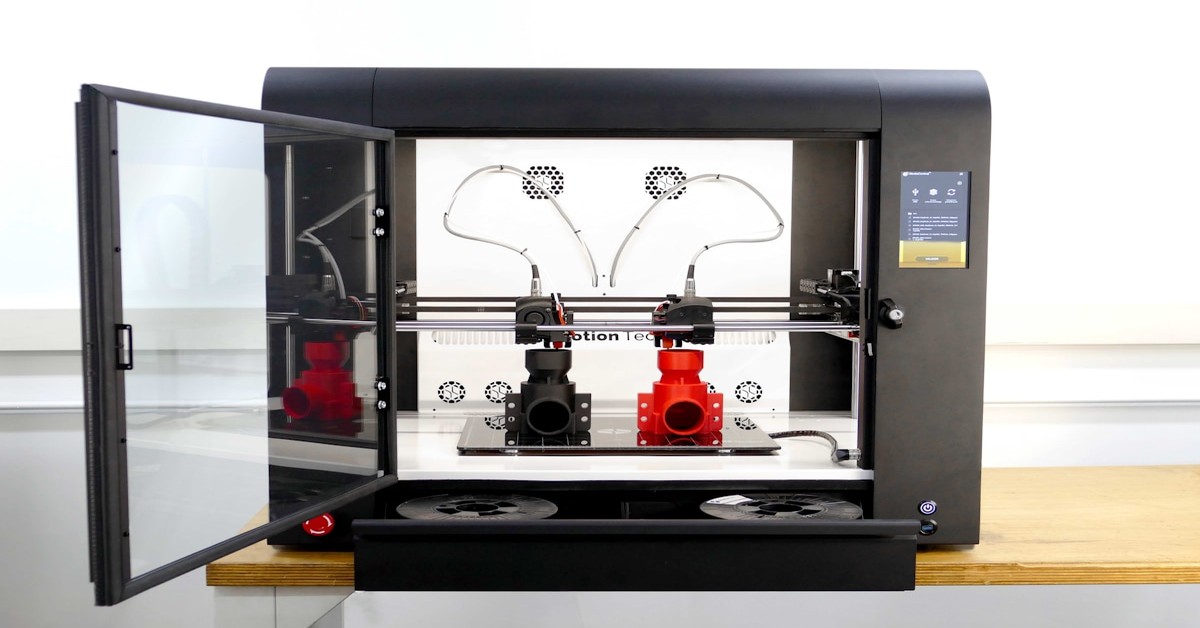
IDEX stands for Independent Dual Extruder. Unlike standard dual extruder setups where two hotends share one carriage, each extruder in an IDEX system gets its own independent rail. That design change makes a real difference for certain kinds of printing.
After working through this myself, I found a few things that textbooks don’t tell you.. For more on this, see our guide on Best Budget 3D Printers Under $300: High Quality on a Budget.
You get three distinct operating modes:
- Duplicate mode: Both extruders print the same G-code at the same time. You produce two identical parts in roughly the time it would take to print one.
- Mirror mode: One extruder mirrors the other’s movement along the X-axis. Useful for printing symmetrical left and right parts like drone arms, shoe soles, or brackets.
- Independent mode: Each extruder prints a different model or material. You can combine PLA with PETG, print soluble supports for complex overhangs, or create multi-color parts without swapping filament by hand.
Who gets the most out of this? Makers running small production runs who want to double output without buying a second machine. Prototypers who need to test material combinations quickly. Hobbyists tired of picking support material off intricate models. And anyone who’s ever wished they could just print two of something at once.
If you’re looking for the best idex 3d printer, you’re probably past the beginner phase. You know about layer lines, bed adhesion, and retraction settings. What you want now is throughput, material versatility, and fewer wasted prints. That’s where IDEX delivers.
From what I’ve seen comparing these side by side, the differences aren’t always where you’d expect.
Key Features to Look for in the Best IDEX 3D Printer
Not all IDEX printers are built the same. Some cut corners on motion systems or hotend capabilities. When you’re comparing models, here’s what separates a good machine from a genuinely productive one.
Build Volume
IDEX printers give up some X-axis space because each extruder needs its own rail. A 300mm single-extruder printer might drop to 250mm in IDEX mode. Check the usable width when both extruders are active, not just the total frame size. For duplicate mode, longer build volumes are usually more practical than taller ones.
Maximum Print Speed
Speed matters more with IDEX because productivity is the whole point. Look for printers rated at 200mm/s or higher in independent mode. CoreXY kinematics handle higher speeds better than bedslingers, so prioritize that design if fast output is your goal.
Hotend Temperature Range
If you want to print engineering materials like polycarbonate, nylon, or TPU alongside standard filaments, you need a hotend capable of at least 300°C. Some budget IDEX printers cap at 260°C, which limits you to PLA, PETG, and basic ABS. Check this spec carefully. For those working with high-temp filaments, a high temperature filament is worth keeping in mind for demanding projects.
Auto Bed Leveling
Two nozzles means twice the alignment headache. A printer with reliable auto bed leveling and automatic Z-offset calibration saves hours of frustration. Inductive probes work fine on spring steel beds. Lidar-based systems, like those on higher-end machines, are even better.
Enclosure
An enclosure isn’t optional if you plan to print ABS, ASA, or nylon. Warping gets worse with dual-material prints because different materials shrink at different rates. A heated chamber minimizes this. Even for PLA, an enclosure reduces drafts and improves consistency.
Filament Runout Sensors
With two extruders running, you have twice the chance of a filament jam or runout. Individual runout sensors on each extruder are mandatory for unattended prints. Some printers pause both extruders when one runs out, which can cause issues. Better models let the active extruder finish while the other waits.
1. Bambu Lab X1E — Best for Speed and Multi-Material Workflows
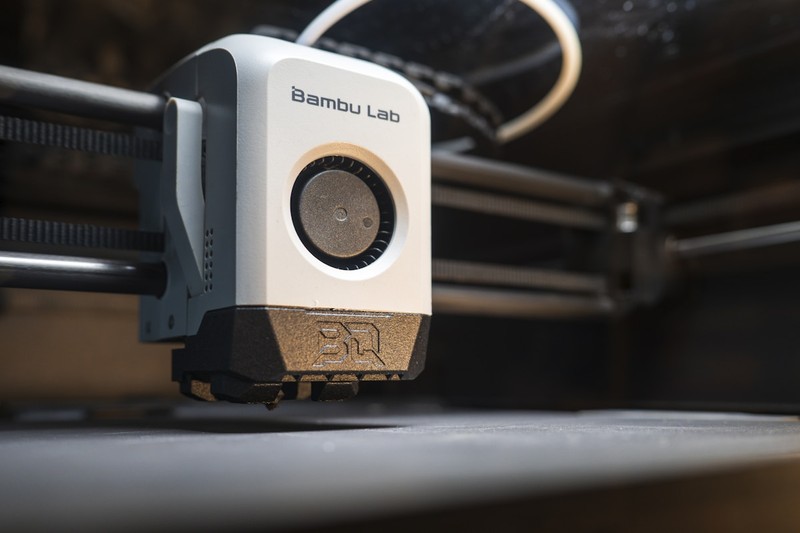
The Bambu Lab X1E is the current benchmark for fast, reliable IDEX printing. It uses a CoreXY motion system with dual gear extruders and Lidar-based calibration. The build volume is 256x256x256 mm, which feels tight for some projects but is consistent and well-supported.
Print speeds regularly hit 200mm/s in independent mode, and the 300°C hotend handles most engineering materials without issue. The enclosure is fully sealed with a carbon filter for printing ABS and nylon. The Lidar system scans the first layer and automatically adjusts the Z offset for each extruder, which eliminates one of the biggest headaches in IDEX printing.
The tradeoff is the ecosystem. Bambu Lab uses proprietary filaments with RFID tags for automatic settings. You can use third-party filament, but you lose some convenience. The price is also higher than most desktop IDEX printers. If you value speed and reliability over expandability, this is the best idex 3d printer for you.
Check the Bambu Lab X1E price on Amazon
2. Prusa Pro XL — Best for Large Builds and Open Source Flexibility
Prusa’s reputation for reliability extends into IDEX territory with the Pro XL. This printer has a massive 360x360x360 mm build volume, a heated chamber, and a modular tool head design that allows up to five independent extruders. The hotend reaches 350°C, making it suitable for high-temperature engineering filaments like PEEK and PEKK.
The Pro XL runs on Prusa’s open-source firmware, which means full control over slicing profiles, custom G-code, and hardware modifications. The heated chamber is actively regulated, maintaining a stable temperature for warping-prone materials. The modular tool heads can be swapped out quickly, so you’re not locked into one configuration.
The downsides are real. The Pro XL is expensive, physically large, and requires a dedicated workspace. Setup takes longer than plug-and-play machines, and the ecosystem is less curated. But for advanced users who need large dual-material parts or want to experiment with exotic filaments, this printer is hard to beat.
Check the Prusa Pro XL price on Amazon
3. Snapmaker J1 — Best for Desktop Dual Extrusion on a Budget
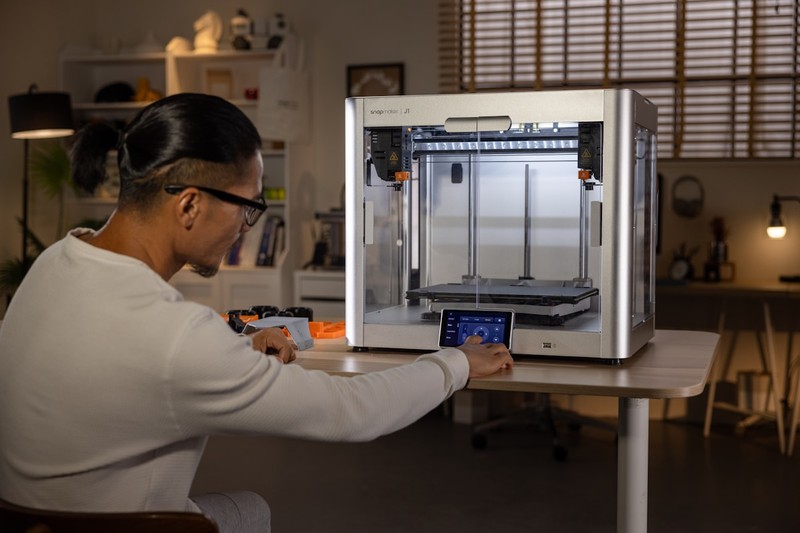
The Snapmaker J1 brings IDEX capabilities to a more accessible price point. The build volume is 300x200x200 mm, which is smaller than the other two options but still large enough for many practical projects. It uses dual direct drive extruders with a 300°C hotend and a fully enclosed frame.
Out of the box, the J1 handles mirror and duplicate modes well. The touchscreen interface makes switching modes straightforward, and the auto bed leveling is reliable. It’s not the fastest printer on the market, but at 150mm/s, it keeps up with most desktop workflows. The enclosure keeps ABS and PETG prints stable, though it’s not actively heated.
The tradeoff is community support. Snapmaker has a smaller user base than Bambu Lab or Prusa, so finding custom profiles or troubleshooting help takes more effort. The build volume also means you can’t print large symmetrical parts like full-size drone arms. But for someone stepping into IDEX for the first time or working with limited desk space, the J1 is a solid entry point.
Check the Snapmaker J1 price on Amazon. For more on this, see our guide on CoreXY vs Cartesian 3D Printers: Speed and Accuracy Compared.
IDEX 3D Printer Comparison Table
| Printer | Price | Build Volume | Max Temp | IDEX Modes | Enclosed | Best For |
|---|---|---|---|---|---|---|
| Bambu Lab X1E | $1,499 | 256x256x256 mm | 300°C | Duplicate, Mirror, Independent | Yes | Speed and reliability |
| Prusa Pro XL | $3,999 | 360x360x360 mm | 350°C | Duplicate, Mirror, Independent (up to 5 heads) | Yes (heated chamber) | Large builds and advanced materials |
| Snapmaker J1 | $799 | 300x200x200 mm | 300°C | Duplicate, Mirror, Independent | Yes | Desktop budget dual extrusion |
Productivity Tips for IDEX Printing: Duplicate vs. Mirror Mode
Duplicate mode is your go-to for production runs. If you need ten identical brackets, duplicate mode prints two at a time, cutting total print time in half. The trick is aligning the G-code correctly. Most slicing software handles duplication automatically, but check that both extruders start at the same Z height and the purge tower is positioned where neither nozzle can collide.
Mirror mode shines for symmetrical parts. Drone arms, shoe insoles, and left/right brackets are classic examples. Just remember that mirrored parts have mirrored geometry. If your model has text, it will be reversed on one side. Measure twice, slice once. Mirror mode also doubles the stress on your X-axis gantry, so make sure the motion system is properly lubricated and tensioned.
A common mistake is forgetting to account for mirrored surfaces when designing parts. If you’re printing a pair of handles, mirror mode creates a perfect left and right pair. But if your model is asymmetrical in any way, standard duplication in independent mode is safer. Always run a test print of one layer in mirror mode before committing to a full job.
Stringing increases with two nozzles because the idle nozzle oozes while the other prints. Use a purge tower or a wipe block at the start of each layer. Set your retraction distance slightly higher than single-extruder defaults. For direct drive extruders, 1-2mm retraction is usually enough. Beginners may find a purge tower for 3D printer helpful for managing ooze.
Common IDEX Printing Mistakes and How to Avoid Them
Nozzle collision is the most frustrating issue. During homing or when both extruders move to the same X coordinate, they can crash into each other. This damages the hotends and ruins prints. Always set a minimum X distance in your slicer. Most firmware handles this automatically, but double-check if you’re using custom profiles.
Oozing from the idle nozzle ruins surface quality. When one extruder is printing, the other nozzle sits idle and heat-soaks. Filament softens and drips onto the print. A purge tower or wipe wall solves this. The idle nozzle moves to the tower between layers, wipes off any ooze, and primes before resuming. It wastes a little filament but saves entire prints.
Dual-material warping happens because different materials shrink at different rates. A PLA-PETG print can curl at the corners as PETG pulls more during cooling. Use a brim or raft on all materials, not just the one you expect to warp. A heated chamber helps, but for open-frame printers, a temporary enclosure made from foam board works as a stopgap. Frequent IDEX users may benefit from a dual material Filament for 3D printer to reduce warping issues.
Filament crossing paths during retraction is rare but real. If you have long Bowden tubes from a Filament Dryer to the extruder, the two filaments can tangle. Keep filament paths separate and straight. For direct drive setups, this isn’t an issue, but it’s worth noting for modified printers.
What to Look for in Software and Slicing for IDEX Printers
PrusaSlicer and Cura both support IDEX configurations. In PrusaSlicer, you assign extruders to different parts or materials using the “Multiple Extruders” tab. For duplicate mode, you add a modifier to print the same object twice. For mirror mode, you mirror the object along the X-axis and assign each instance to a different extruder.
Cura’s approach is similar. You set up a dual extrusion printer profile, then assign extruders in the print settings. The “Print Sequence” option lets you choose between all at once or one at a time. For IDEX, “one at a time” is safer because it prevents nozzle collisions.
Simplify3D also supports IDEX, but its user base has shrunk. Most current users prefer PrusaSlicer’s open-source development or Cura’s wide range of profiles. Stick with one of those two unless you have specific legacy workflows.
Before diving into complex multi-material prints, run a calibration cube on each extruder. Print two identical cubes in duplicate mode to verify alignment. Then print a single cube with a material change at layer 50 to test independent mode. This process takes twenty minutes and saves hours of troubleshooting later.
Final Verdict: Which IDEX 3D Printer Should You Buy?
If speed and reliability are your top priorities, the Bambu Lab X1E is the best idex 3d printer on the market right now. Its Lidar calibration and fast print speeds make it ideal for production environments where every minute counts.
For large builds and material experimentation, the Prusa Pro XL wins. The expandable tool heads and heated chamber give you flexibility no other IDEX printer offers. It’s an investment, but for serious makers, it pays off.
On a budget or new to IDEX? The Snapmaker J1 gives you a reliable, enclosed experience at a fraction of the cost. It’s not the fastest or largest, but it nails the basics and will teach you everything you need to know about dual extrusion workflows.
Think about your primary use case. Production runs of identical parts? Go duplicate mode on the Bambu Lab X1E. Symmetrical prototype pairs? Mirror mode on any of these works. Multi-color or soluble support prints? Independent mode is where the Prusa Pro XL shines.
Compare Bambu Lab X1E prices | Compare Prusa Pro XL prices | Compare Snapmaker J1 prices
Frequently Asked Questions About IDEX 3D Printers
Can you print two different colors with an IDEX printer?
Yes. In independent mode, each extruder can load a different color filament. The printer swaps between them layer by layer or object by object.
What is the best IDEX printer for beginners?
The Snapmaker J1 is the most beginner-friendly due to its lower price, straightforward touchscreen interface, and good out-of-box calibration.
Is IDEX worth it for small batch production?
Absolutely. Duplicate mode cuts print time in half, so a run of twenty parts takes ten print cycles instead of twenty. The time savings add up fast.
Can you convert a single Extruder 3D Printer to IDEX?
I’ve been through this process enough times to know that the best choice is the one you’ll actually use.
It’s technically possible with aftermarket tool changer systems like the E3D ToolChanger, but it requires significant mechanical work and firmware modification. For most people, buying a dedicated IDEX printer is more practical.
My honest take: don’t chase features you won’t use. The $3000 printer won’t make you a better designer, and the pro software won’t help if you never open it. Match the tool to your actual projects, not your aspirations. That’s how you actually finish prints instead of just reading about them.. For more on this, see our guide on Best 3D Printer Kits for DIY Enthusiasts and Builders.
best idex 3d printer for you. Check the Bambu Lab X1E price on Amazon 2. Prusa Pro XL — Best