Optimizing Supports: Best Settings for Easy Support Removal
Introduction
There’s a specific frustration that every maker knows. You spend hours dialing in a print. The first layers go down perfectly. The overhangs look clean coming off the bed. Then you go to remove the supports, and it all falls apart. Literally. Snapped plastic. Rough surfaces where the print should be smooth. A 12-hour print turns into another 30 minutes of picking, scraping, and filing.
In my experience, the biggest mistake people make is overthinking the details and missing the fundamentals.. For more on this, see our guide on Mastering Cura: Top 10 Hidden Settings You Should Use.
 3D Printer Support Overhang Test” />
That’s the problem we’re solving here. This is a practical, no-nonsense guide to getting cleaner prints without the post-processing nightmare. We’re going to explore the Best 3D print support settings for easy removal, why they matter, and exactly how to configure them for your material and your machine. If you’re past the beginner stage and want finer control over your support structures, this is for you.
Why Support Removal Is a Problem Worth Solving
Let’s be direct: the default support settings in most slicers are okay for getting a print to finish. They’re not designed for a clean finish. They’re designed to be safe. That safety margin comes at a cost.
The real pain points are universal. Snapped supports leave behind rough nubs and scars that need sanding. Dense supports fuse to the model, tearing away material when you try to break them off. You end up spending more time cleaning up prints than actually printing. That’s the tradeoff — you traded surface quality for print reliability.
There’s also the material cost. Dense support patterns eat up filament that becomes trash. And the time cost? Rushing through post-processing on a multi-part project can easily add an hour of cleanup per print. Tuned settings fix this. When you get support interface layers, separation distances, and pattern density right, supports pop off cleanly. The surface underneath is smooth or near-smooth. That’s the goal. Beginners looking for reliable 3D printer filament can start with a quality PLA for easier tuning.
Support Interface Layers: The Most Important Setting for Easy Removal
If you only change one setting, make it the number of support interface layers. This variable has the biggest impact on removal ease versus support stability.
Interface layers are the dense, solid layers printed between the support structure and the actual model surface. They’re what your print actually sits on. Without them, the sparse support pattern leaves gaps and the model sags. With too many, the interface fuses to the part and becomes a nightmare to remove.
For PLA, start with 2 interface layers. This gives a solid enough surface for most overhangs (up to 60 degrees) without bonding too aggressively. If you’re printing finer detail or a smaller model, try 1 layer. You’ll get even easier removal, but you might see some sagging on steeper angles.
For PETG, stick with 2 interface layers as well. PETG tends to fuse to itself more aggressively than PLA, so keeping the interface sparse helps. If you’re printing PETG supports on a PLA model, you can even drop to 1 layer and get excellent results.
For TPU, you usually want 3 interface layers. TPU is flexible and tends to sag more, so a denser support top prevents mess. You’ll trade some removal ease for better surface quality. That’s a worthwhile trade for flexible materials.
The key is testing. The difference between 2 and 3 interface layers can be night and day. Print a small test piece with a 45-degree overhang, try each setting, and see what works for your specific Filament Brand.
Support Pattern and Density: Snappy vs. Solid
Pattern choice is often overlooked, but it matters a lot for how supports actually break away.
Grid is the default in many slicers. It’s strong and reliable, but it’s also the worst for removal. Grid supports lock into each other and create a rigid block that snaps unevenly. Avoid grid unless you’re printing small parts with simple geometry.
Zigzag is better for removal. The pattern runs in one direction, so supports snap off more cleanly. It’s not as strong as grid, but for most prints, it’s strong enough.
Lines is even easier to remove. It’s essentially a single-direction sparse fill. It works great for gentle overhangs and straightforward geometries. For complex parts with multiple overhang angles, it can be unstable.
Concentric is worth trying for circular or curved parts. It follows the contour of the model, which can reduce the surface area of contact. Removal is often the easiest, but it’s also the weakest pattern.
For density: start at 10% for most prints. Go down to 5% for simple geometries and up to 15-20% for complex overhangs that need more stability. The ‘snap away’ effect is real with patterns like zigzag and lines — the supports crack and fall off in chunks rather than fighting you. That’s what you want.
Support Z-Distance and XY Separation: The Clearance Game
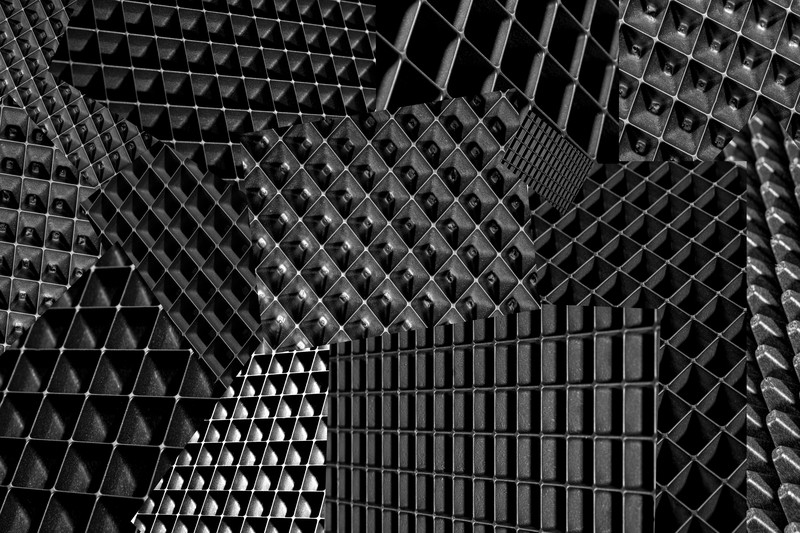
Z-distance is the vertical gap between the support top and the model surface. XY separation is the horizontal clearance. Together they determine how much the support actually touches the model.
Too tight and the support fuses to the part. Too loose and the model sags into the gaps. You want just enough gap that the support doesn’t bond, but the model doesn’t droop.
Starting points per material:
- PLA: Z-distance of 0.12mm. XY separation of 0.1mm.
- PETG: Z-distance of 0.2mm. XY separation of 0.15mm.
- TPU: Z-distance of 0.3mm. XY separation of 0.2mm.
- Nylon: Z-distance of 0.16mm. XY separation of 0.12mm.
The general rule: tune in increments of 0.04mm (one full layer at 0.2mm layer height). If supports are sticking, increase Z-distance by 0.04mm. If surfaces are rough, decrease it. The Z-distance should generally be at least 1.5x your layer height. So at 0.2mm layers, 0.3mm is a safe starting point for most materials.
Support Material Combinations: Soluble, Breakaway, and Dual Extrusion
This is where things get serious. If you’re printing complex geometries, interlocking parts, or things with internal cavities, standard supports won’t cut it. You need dedicated support materials.
PVA (polyvinyl alcohol) is water-soluble. Print it as support, then dissolve it away in warm water. The result is a perfect, untouched surface underneath. The tradeoffs: PVA is expensive, it absorbs moisture aggressively (you’ll need to dry it), and you need a dual-extrusion printer or at least a filament-switching setup. It’s the gold standard for complex models.
HIPS (high-impact polystyrene) is soluble in d-Limonene. It works well with ABS and ASA. Less moisture-sensitive than PVA, but the solvent is messy and requires ventilation. Good for functional parts.
PETG support on PLA is a clever hack. Print the model in PLA, then switch to PETG for supports. The two materials don’t bond chemically, so the support peels away cleanly. You don’t need a soluble filament, just a printer that can handle higher temperatures. This is the most practical ‘cheap’ dual extrusion trick.
There are also dedicated support filaments like eSun Support and Polymaker PolySupport. These are engineered to bond well with the model surface but break away easily. They’re not soluble, but they’re much easier to remove than standard filament. They cost more per gram, but on complex prints, the time savings are worth it. For those exploring these materials, a dual extrusion filament switching 3D printer can make the process seamless.
For most hobbyists with a single extruder, filament-switching machines (like the Bambu Lab X1C with AMS or the Prusa MK4 with MMU) are the practical entry point for these combinations. It’s a bigger investment, but for serious makers, it’s worth considering.
From what I’ve seen comparing these side by side, the differences aren’t always where you’d expect.
Top 5 Slicers for Support Optimization: Curated Comparison
Not all slicers handle supports equally. Here’s a breakdown of the best options for easy removal.
Cura: The most popular slicer for a reason. Cura’s tree supports are excellent. They generate supports that branch out like a tree, reducing contact area and making removal much easier. You also get support blockers to manually remove supports from specific areas. Best for: beginners and intermediates who want fine control without complexity.
PrusaSlicer: The organic supports in PrusaSlicer are arguably the best in the game. They generate natural-looking support structures that snap off cleanly. The interface layer control is granular, and you get excellent per-material profiles. Best for: users who want the best out-of-box support experience.
Simplify3D: The veteran. Simplify3D gives you manual control over individual support structures. You can draw custom supports exactly where you need them. The learning curve is steeper, but for complex mechanical parts, the precision is unmatched. Best for: advanced users who prioritize control.
Bambu Studio: Built for Bambu Lab printers, but increasingly used on other machines. Bambu Studio has excellent calibration tools for support settings. The tree supports are good, and the user interface is clean. Best for: Bambu Lab owners and anyone who wants a streamlined workflow.. For more on this, see our guide on Slicing for Strength: Best Slicer Settings for Functional Parts.
OrcaSlicer: A fork of Bambu Studio with even more advanced features. OrcaSlicer lets you set support settings based on the nozzle diameter used, which is huge for multi-material prints. It also has excellent bridge settings. Best for: tinkerers who want the latest features.
If you’re just starting your optimization journey, PrusaSlicer or Cura are your best bets. They’re free, well-documented, and have the best support removal features for most users.
Support Overhang Angle: When to Enable and When to Skip
The overhang angle setting tells the slicer to generate supports for any surface that exceeds a certain angle from vertical. The default is usually 45 degrees.
Here’s the practical reality: most printers can handle a 50-degree overhang without supports if the geometry is simple. 60 degrees is the sweet spot for reliable prints with most materials. If you dial the angle up to 60 or 70 degrees, you drastically reduce the number of supports generated. That means less plastic wasted, less time printing supports, and less post-processing.
But there’s a caveat. Complex bridges or sharp overhangs that span a large area will still need supports at lower angles. If you have a bridge that’s 80mm long, a 60-degree support angle might cause it to sag. In those cases, drop the angle to 50 or even 45 degrees locally using a support blocker or modifier mesh.
The best practice: set your global overhang angle to 60 degrees for most prints. Then manually add supports to specific problematic areas. This saves time and keeps supports minimal.
Common Mistakes That Ruin Support Removal
Here are the mistakes I see most often, and how to fix them.
Using grid supports at high density. Grid is the worst pattern for removal, and when you combine it with 15%+ density, you get a rigid block that fights you. Fix: switch to zigzag or lines and lower density to 10%.
Ignoring interface layers. Some people disable interface layers entirely to save filament. The result is rough surfaces and supports that tear away unevenly. Fix: use at least 1 or 2 interface layers. The minor filament cost is worth the surface quality.
Over-extruding support material. Running support extrusion at 100% is common. But support doesn’t need to be as solid as the model. Drop support extrusion to 90-95%. The supports will be weaker, but that’s fine — they just need to hold the shape. Fix: reduce support flow by 5-10%.
Not calibrating Z-offset. If your first layer Z-offset isn’t dialed in, the entire print’s geometry is off. That includes the support-to-model gap. Fix: calibrate your Z-offset with a simple test print before adjusting other settings. A 3D printer calibration tool can help get that Z-offset accurate.
The best way to test is with a small calibration model — something with a 45-degree overhang and a flat bridge. Print it with default settings, then adjust one variable at a time. Document what works for your specific printer and filament brand.
Best Supports for Different Materials: PLA, PETG, TPU, and Nylon
Material matters. Here’s how to approach each one.
PLA: Easiest material for support removal. Use a low Z-distance (0.12mm to 0.2mm), 2 interface layers, and a zigzag pattern. PLA supports snap off cleanly with minimal surface marring. For small prints with simple overhangs, you can often get away without interface layers.
PETG: PETG loves to stick to itself. To avoid fusing, use a higher Z-distance (0.2mm to 0.3mm) and reduce interface layers to 1 or 2. A line or concentric pattern works well. The biggest pitfall is PETG-on-PETG supports — they can be stubborn. If possible, use PETG supports on a PLA model for clean breakaway.
TPU: Flexible filament needs more support structure. Use a Z-distance of 0.3mm to 0.4mm, and 3 interface layers. A denser pattern (15% density) helps prevent sagging. If you have a dual-extrusion setup, use PVA supports for truly clean removal. TPU-on-TPU supports often fuse badly.
Nylon: Nylon is strong and requires more aggressive support. Use a Z-distance of 0.16mm to 0.24mm. 2 interface layers at 15% density. The higher printing temperature means supports can be harder to remove. Use a dedicated support filament if possible, or lower the support temperature to reduce adhesion.
Tool Kit for Clean Removal: Must-Have Accessories
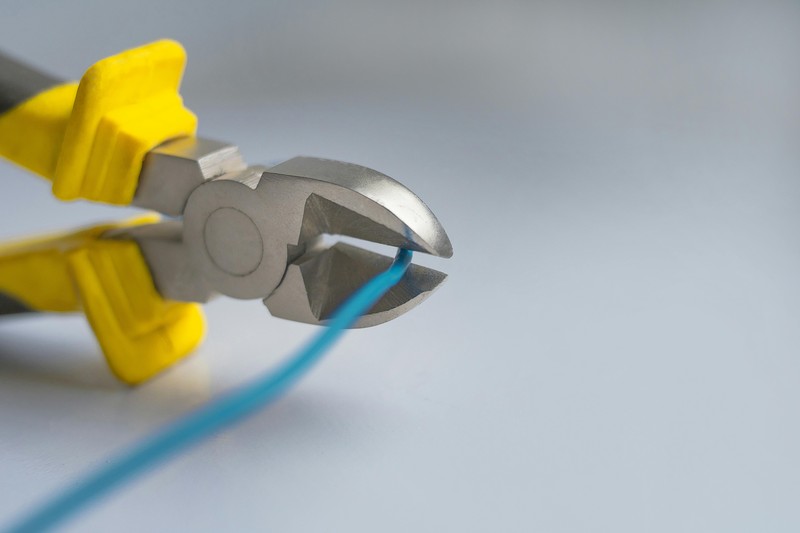 3D Printing post-processing tools including flush cutters, deburring tool, and needle files” title=”3D Print Support Removal Tool Kit” />
Even with perfect settings, you’ll still need to remove supports. Having the right tools makes the job faster and prevents damaging your print.
Flush cutters are your go-to for sniping support struts. Get a sharp pair with a flat back so you can cut flush against the model surface. The Xuron 410 micro-shear cutters are a solid choice.
Deburring tools clean up the nubs left behind. A simple three-sided deburring tool works wonders on PLA and PETG.
Tweezers with a pointed tip help pick out small support fragments from tight spaces. A pair of titanium-tipped tweezers is ideal.
Needle files are essential for smoothing interfaces. A small set with various shapes (round, flat, triangular) handles most cleanup tasks.
Heat gun (low-temp) can soften stubborn supports, especially on large prints. Just be careful not to warp the model.
For a quick start, a 3D printing support removal kit that bundles these together is a good buy. They’re inexpensive and save you from buying individually. A complete 3D print support removal kit can give you everything you need in one package.
Final Verdict: Start with These Baseline Settings
Let’s simplify everything into a starting point you can use right now.
For a PLA print on a standard FDM printer with 0.4mm nozzle and 0.2mm layer height:
- Support Interface Layers: 2
- Support Pattern: Zigzag
- Support Density: 10%
- Z-distance: 0.16mm
- XY Separation: 0.1mm
- Overhang Angle: 60 degrees
- Support Flow: 95%
For PETG, change Z-distance to 0.24mm and reduce interface layers to 1.
For TPU, increase Z-distance to 0.32mm, density to 15%, and interface layers to 3.
This is your baseline. Print a small calibration block, test, and adjust from there. The organic supports in modern slicers are also worth exploring — they’re the closest we’ve gotten to ‘print and forget.’
I’ve been through this process enough times to know that the best choice is the one you’ll actually use.
The result is faster prints, less plastic waste, and models that look like they came off a production machine. That’s the goal. Now go dial in those settings.. For more on this, see our guide on Best 3D Model Marketplaces: Where to Buy and Sell Designs.
The 3D printing community is one of the best parts of this hobby. Get on Reddit, join a few Discords, find your local makerspace. When you hit a wall — and you will — someone has already solved it. I’ve learned more from strangers on the internet than from every manual I’ve ever read.