
How to Use Meshmixer for 3D Print Preparation and Repair: A Practical Guide
Introduction
If you’ve ever downloaded a 3D model only to have your slicer throw errors, or spent hours on a print that failed halfway through, you know the frustration. That’s where Meshmixer comes in. This free tool from Autodesk has been a staple in my workflow for years, and it’s the most practical solution I’ve found for preparing and repairing STL files before they hit the printer. Whether you’re a beginner who just got their first Ender 3 or an intermediate user struggling with complex organic models, this meshmixer tutorial will walk you through the core features step by step. My goal here is simple: give you a reliable, repeatable process that saves material, time, and failed prints.

Why Use Meshmixer for 3D Printing Prep?
Other free tools exist, but Meshmixer fills a specific niche that Blender and Cura don’t. Blender is a full 3D suite—powerful but overkill for simply fixing a hole or adding a few supports. Cura handles slicing and basic repairs, but it’s limited when dealing with non-manifold geometry or complex support structures. Meshmixer sits right in the middle: it’s free, fast to learn, and purpose-built for mesh repair, hollowing, and custom support generation. In my experience, the learning curve is gentle compared to Blender. Within an hour you can fix a broken model. For SLA users, the hollowing tool alone justifies the download. For FDM, the tree supports often outperform what your slicer generates. It’s not perfect—it’s no longer actively updated by Autodesk—but for a free tool, it remains unmatched for print preparation.. For more on this, see our guide on Best Slicer Settings for Miniatures: Getting Resin-Like Detail on FDM Printers.
What You’ll Need Before Starting
Before diving in, gather a few things. First, a 3D model in STL or OBJ format—most downloads from sites like Thingiverse or Printables will work. Second, a computer running Windows or Mac. Meshmixer runs fine on older hardware; I’ve used it on a five-year-old laptop without issues. Third, download Meshmixer from the official Autodesk site—it’s still available and safe. Optional but helpful: a mouse with a scroll wheel for smooth viewport navigation. Beginners may prefer a dedicated 3D modeling mouse with extra buttons for quick view controls, though a standard mouse with a scroll wheel is perfectly fine. You’ll also need your preferred slicer (Cura, PrusaSlicer, or similar), and a reliable USB drive or SD card for transferring files. For a typical repair job, set aside 20-30 minutes. That’s enough time to inspect, repair, hollow, and add supports for most models.
Getting Started: Importing and Navigating Your Model
Open Meshmixer and click “Import” to load your model. It appears in the viewport. Navigation is intuitive: left-click and drag to rotate, scroll wheel to zoom, and right-click and drag to pan. If your model looks faceted or laggy, it might have very high polygon counts. For most prints, 100k-500k triangles are fine. I recommend enabling two tools immediately. Go to the “Analysis” menu and turn on “Measure Tool”—it shows real-time dimensions. Also enable “Show Wireframe” under the “View” menu for better visibility of surface issues. A common beginner mistake is ignoring file format. If your model is in 3MF or OBJ with embedded colors, Meshmixer can handle it, but for most repair jobs, STL is safest. If your model fails to import, try converting it with an online tool first.
Step 1: Analyzing Your Model for Print Issues
The first thing I do with every model is run the Inspector. Click “Analysis” and then “Inspector.” A window pops up showing detected problems: holes, flipped normals, disconnected shells, and more. Visual cues are clear—red dots mark holes, pink areas indicate inverted normals, and individual shells are listed. I always run this as my first action. It’s quick and catches issues you might miss by eye. For example, a tiny hole in a hidden pocket can cause a failed SLA print. The Inspector’s automatic repair button works for simple holes, but I manually inspect each issue before applying auto-repair. Some problems, like non-manifold edges, won’t be fully fixed by auto mode. A tip: use the “Update” button after each repair to re-scan. This prevents overlapping issues from being missed.

Step 2: Repairing Holes, Cracks, and Gaps
For simple holes, click the small red dot and hit “Auto Repair All.” It works 90% of the time. For complex gaps—like a missing chunk of a mini’s sword—use manual tools. Select the area with the “Erase & Fill” brush from the “Edit” menu. Brush over the gap, then let Meshmixer fill it with a smooth patch. For long thin gaps, I prefer the “Bridge” tool under “Edit.” Place spheres at both ends of the gap and connect them. Adjust sphere size to control the bridge curve. The tradeoff is clear: automatic repair is fast but can distort organic shapes. Manual bridging takes longer but preserves detail. For thin walls, keep the sphere small—0.5 to 1mm works for most gaps. One mistake I see is over-repairing. If a hole won’t hurt print quality (like a cosmetic recess), leave it. The slicer will handle it.
Step 3: Hollowing Your Model to Save Material
Hollowing is where Meshmixer truly shines for resin and large FDM prints. Select “Edit” then “Hollow.” Set wall thickness: 1.2mm for standard FDM, 2mm for SLA. The “Accuracy” slider controls interior smoothness—leave it at default (4-6) for most cases. Add escape holes for resin prints to prevent suction and trapped liquid. Click the “Add Hole” button and place 2-4 small holes on the underside or hidden areas. A common mistake: hollowing a model with thin features that would become fragile. If your model has thin arms or spikes, measure their thickness first using the “Measure Tool.” Hollowing a 2mm spike leaves a shell too thin to print. For my D&D miniatures, I skip hollowing entirely. For larger terrain pieces or functional parts, it saves significant material. Always check the “Show Cut” preview to verify interior thickness.
Step 4: Adding Supports and Orientation Tips
Meshmixer’s support generation handles complex overhangs better than many slicers. Click “Analysis” and then “Overhangs” to see problem areas. Then click “Generate Supports” from the same menu. The default tree supports are robust but leave dense nests. I adjust the “Support Density” slider to 0.5-0.7 for most prints. For overhangs beyond 45 degrees, manually paint on extra supports. Click “Edit Supports” and use the brush to add point supports. A real-world tip: orient your model in Meshmixer before generating supports. Rotate large flat areas off the bed to reduce overhangs. For example, a 45-degree tilt often halves support volume. However, be cautious with SLA—orient for peel forces, not just supports. In practice, I generate supports in Meshmixer then export the STL. My slicer (Cura) adds a raft automatically. For complex models, this two-step workflow reduces support failures significantly. Travelers who print on the go may appreciate a compact portable SD card reader to speed up file transfers between computers and printers.. For more on this, see our guide on Best 3D Model Marketplaces: Where to Buy and Sell Designs.
Step 5: Smoothing, Scaling, and Final Checks
Before export, use the “Smooth” brush under “Sculpt” to clean up rough edges from repairs. A strength of 0.5 adjusted over 2-3 passes works well without losing detail. For scaling, select your model and press “T” for Transform. Set exact dimensions—most slicers ignore Meshmixer’s units, so verify with the Measure Tool. To set real-world scale, go to “Edit” then “Units/Scale.” Enter your target size. I once had a 200mm model shrink to 20mm because I skipped this step. Do a final checklist: run the Inspector again to catch any new holes, verify all supports touch the build plate (check the underside view), and confirm hollowing hasn’t created thin walls (use “Edit” > “Plane Cut” to inspect interior). If satisfied, move to export.
Common Mistakes Beginners Make (And How to Avoid Them)
I’ve made every mistake in the book. Here are the most common. First, forgetting to run the Inspector—it’s easy to skip but catches the majority of issues. Second, over-hollowing a model without checking wall thickness, leading to fragile prints that crack. Third, ignoring manifold conditions. A model that isn’t watertight will fail in the slicer. Use the Inspector to check. Fourth, relying too much on auto-repair for organic shapes. Auto mode can stretch a nose into a blob. For character models, I always use manual bridging. I once tried to auto-repair a dragon miniature and ended up with a deformed wing that took an hour to fix manually. Lesson learned: auto-repair is for mechanical parts, not sculpted ones. If your model looks distorted, undo (Ctrl+Z) and try manual methods.
Exporting for Your Slicer: STL vs. OBJ vs. 3MF
For export, go to “File” > “Export.” The format matters. STL is universal—compatible with every slicer, but lacks color and multi-material info. OBJ can carry textures and vertex colors, useful for multi-material prints if your slicer supports it. 3MF is newer and handles multiple materials, colors, and metadata cleanly. For most users, STL is safest. But there’s a crucial step: before exporting, increase the “Solid Accuracy” slider to a higher value (0.1mm or less). I set mine to 0.05mm for detailed parts. This reduces slicing errors caused by low-res triangles. A low accuracy setting can create gaps that your slicer interprets as holes. For multi-material prints with a printer like the Bambu Lab X1C, export as 3MF to preserve color mapping. Always test a small batch before committing to a full plate.
Meshmixer vs. Other Free Repair Tools: When to Choose What
You don’t need Meshmixer for every job. If your model is simple and error-free, Cura’s “Repair” function works for minor holes. PrusaSlicer has a built-in “Fix by Netfabb” option that catches many issues. Blender’s “3D Print Toolbox” add-on offers advanced checks but requires modeling knowledge. Here’s my decision framework: use Meshmixer for STL repair, hollowing, and custom supports on organic models. Use PrusaSlicer’s auto-repair as a quick check. Use Blender if you need to modify geometry (adding a hole, merging parts). For strict print prep, Meshmixer wins hands down. Its drawbacks: no longer updated, occasional bugs, and some features crash on Mac. But for a free tool that does one job well, it’s hard to beat. If you’re on a budget and need reliable results, start here.
Ready to Take Your Prints to the Next Level?
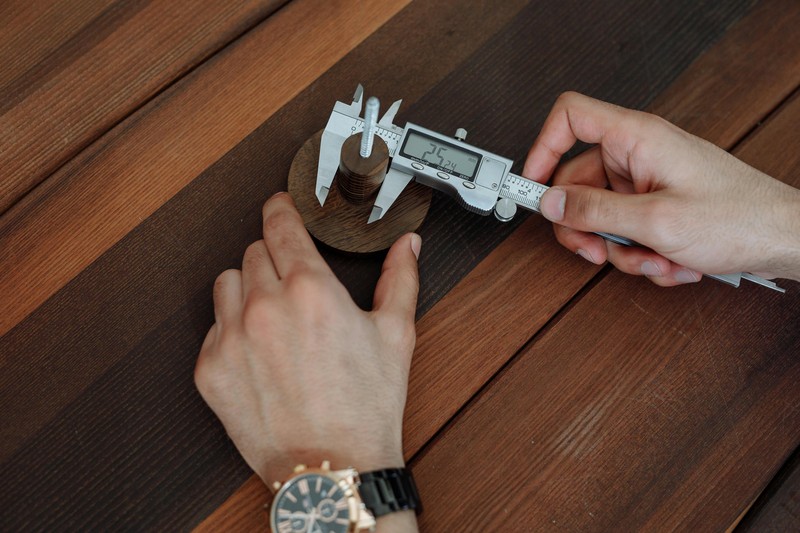
Following these steps—repair, hollow, support, scale—will reduce failed prints and save material. Start with a simple model to test your workflow. Once comfortable, apply the same process to complex projects. Consider tools that improve your post-Meshmixer workflow: a digital caliper for verifying dimensions after scaling, a premium SD card for fast file transfers (especially for large resin files), and a filament storage box to keep materials dry—moisture ruins prints regardless of prep. A digital caliper helps confirm dimensions match your slicer settings before printing. You’ll find these essentials and more by searching online.
Frequently Asked Questions About Meshmixer
Is Meshmixer safe to use? Yes. It was developed by Autodesk and is still distributed from their site. It’s ad-free and doesn’t collect data. Can it do organic sculpting? Limitedly. It has basic sculpting brushes, but for serious sculpting use ZBrush or Blender. Will it work on my laptop? Yes, even low-end ones. STL files are lightweight. High-poly models (2M+ triangles) will lag though. Is the tree support always reliable? No. I’ve had failures on very steep overhangs. Always test with a small print first. If supports fail mid-print, try reducing density and adding manual points. One final tip: if a model gives consistent errors, try exporting as a different format or downloading a fresh file. Sometimes the problem is the source, not the tool.
One last reality check: 3D printing is still a maker’s tool, not a consumer appliance. Things will fail. Prints will warp. Filament will tangle. If you go in expecting an inkjet printer experience, you’ll be frustrated. If you go in expecting a workshop tool that rewards patience, you’ll have a blast.. For more on this, see our guide on Slicing for Strength: Best Slicer Settings for Functional Parts.