Mastering Cura: Top 10 Hidden Settings You Should Use
Introduction
Cura is probably the most common slicer for FDM printers, and for good reason. It’s free, updated regularly, and generally just works. The default profiles are intentionally conservative though. They’re set up to get you a successful print with minimal hassle, not to push for maximum quality or speed. If you’ve been using Cura for a while and feel like you’ve hit a plateau, several powerful, somewhat hidden features can change your results. This article covers 10 practical cura slicer tips that can improve print quality, reduce waste, and save time. These aren’t theoretical tweaks. They are real settings in specific menus that I use regularly. Some took me months to find through trial and error. This guide will save you that time. Let’s get into it.
Why Bother with Hidden Settings? Going Beyond Defaults
Default profiles are designed for the average user printing the average model. That leaves a lot of performance on the table. When I first installed Cura, I loaded the default profile for my Ender 3 and printed a calibration cube. It was fine. Functional. But when I started digging into settings and made a few targeted changes, the difference was visible. Layer lines were more consistent, the top surface was smoother, and the print felt more solid. It wasn’t a 30% improvement overnight, but after three or four small tweaks, the quality improvement was undeniable. These settings require small, specific adjustments, not wholesale changes. You can’t just turn everything on at once and expect magic. You need to understand what each setting does, and more importantly, when it applies. Some have trade-offs. You might save filament but lose a bit of top-layer strength. Or reduce stringing but increase print time. That’s fine. The goal is to have control, not to mindlessly optimize. This guide will give you that control.. For more on this, see our guide on Best Free STL Files: Top Sites for Downloading 3D Models.
1. Enable Tree Supports for Complex Overhangs
Tree supports can transform prints with intricate overhangs. You find this under Support > Generate Support > Support Structure. Instead of standard blocky towers, tree supports branch out like, well, a tree. They use significantly less material—roughly 30% less in most cases—and are easier to snap off. I’ve used them for models with detailed dragon wings, articulated figures, and keychain prototypes. The downside is that they can be tricky to remove if the branch connects deep inside a cavity. But for organic shapes, there’s really no comparison. The filament savings alone make it worth the switch for any print that needs support. Beginners printing complex models might find it helpful to pair this with a quality PLA Filament that handles overhangs well. Just keep in mind that tree supports can sometimes fail on very steep overhangs if your cooling isn’t sufficient. For the vast majority of prints though, they are a clear win.
2. Adaptive Layer Height for Faster Prints
Adaptive Layer Height adjusts the layer height based on your model’s geometry. It’s located under Experimental > Adaptive Layers. The algorithm automatically uses thinner layers on curved or angled surfaces for better detail, and thicker layers on flat, vertical walls to speed things up. The tradeoff is variable quality across the print. It works best for tall objects with mostly straight walls, like a tower or a vase. For models with extreme curves, you might notice a slight loss of detail where the layers transition. I use this for functional prints where speed matters more than absolute smoothness. It can shave 15–20% off the total print time on larger models. If you’re printing something with a lot of slopes, plan on sanding or post-processing the surface. Otherwise, it’s a good time-saving tool.
 3D Printed object with a smooth, glossy top surface achieved using ironing settings in Cura” title=”Smooth Top Surface with Ironing Enabled” />
3. Ironing for Smooth Top Surfaces
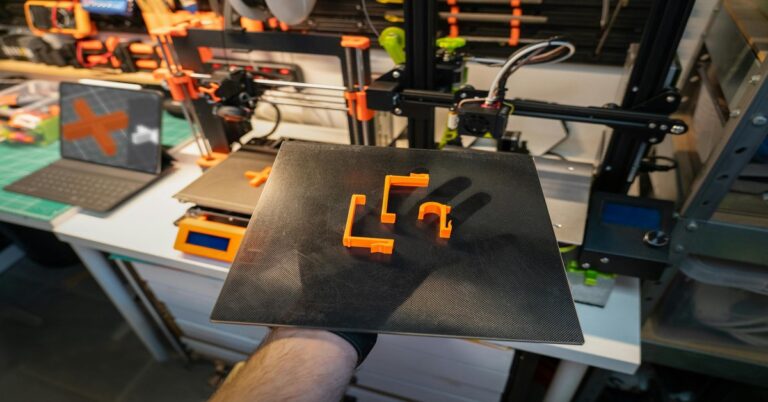
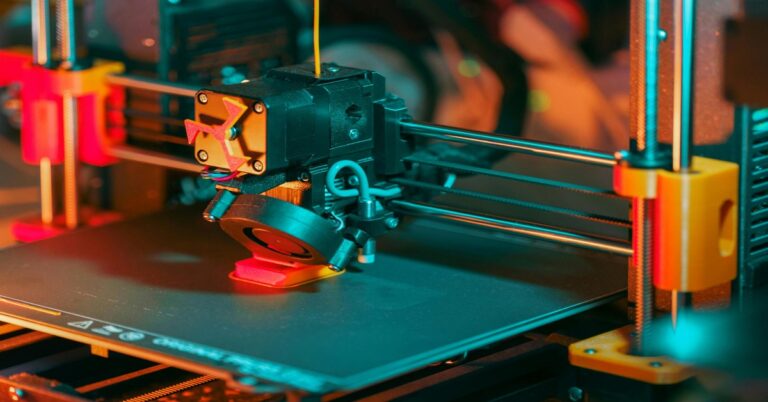
Ironing is one of those settings that feels like magic the first time you see the result. Found under Experimental > Ironing, it makes the nozzle pass over the top layer again without extruding filament. Instead, it just melts and smooths the existing surface. The result is a flat, almost polished top layer that looks nothing like the standard textured finish. It’s ideal for signs, display pieces, or any flat surface where aesthetics matter. The main downside is time. It adds roughly three to five minutes per layer, so for a tall box, that adds up. Another common issue is underextrusion, which can cause small blobs on the top layer. I recommend testing it on a small flat square first to dial in your flow rate. When it works, it’s one of the best visual upgrades you can make without changing filament.
4. Combing Mode to Reduce Stringing
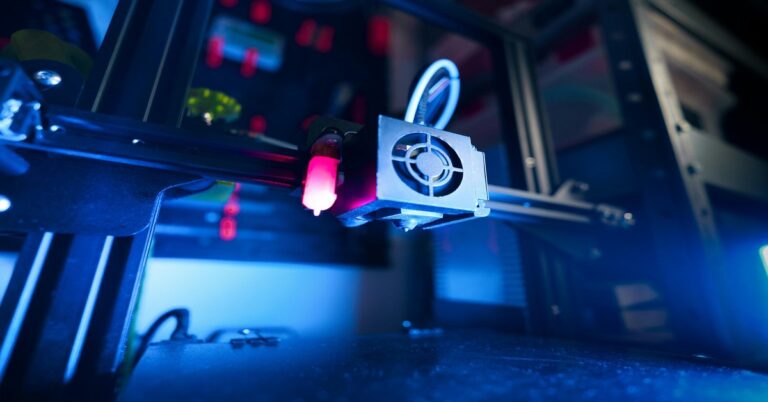
Stringing is a pain, and while retraction settings are the primary fix, Combing Mode helps by keeping the nozzle inside the model during travel moves. You’ll find it under Travel > Combing Mode. The options are All, Within Infill, and Not in Skin. Within Infill is my go-to for most prints. It prevents the nozzle from traveling over the outer walls, which reduces stringing on visible surfaces. Not in Skin is slightly more restrictive and works well for models with thin walls. The main downside is that combing can cause oozing if your retraction isn’t perfectly tuned, because the nozzle is moving through infill. For most general-purpose prints, this setting alone will clean up your results. If you still see stringing after enabling it, you need to adjust retraction distance and speed. If you deal with stubborn stringing across different materials, experimenting with retraction test filament can help dial in the perfect settings.
5. Z-Seam Alignment for Cleaner Aesthetics
The Z-seam is the scar where the nozzle starts and stops each layer. By default, it’s often placed on one side of the print, creating a visible line. Under Shell > Z Seam Alignment, you have several options. Sharpest Corner is excellent for models that have a defined edge, as it hides the seam there. User Specified lets you place it manually, useful for cylindrical parts like phone stands. Random scatters the seam across the print, but this usually results in a bunch of small dots rather than a line, which can look bad. Shortest is the default and tries to minimize travel time, but the seam ends up wherever is fastest. For display models, set it to Sharpest Corner and calibrate your retraction to minimize the blob at the seam. For functional prints, Shortest is fine.
6. Avoid Crossing Perimeter for Thin Walls
This is a fairly specialized setting, but it’s invaluable for prints with thin walls or delicate details. Found under Travel > Avoid Crossing Perimeter, it tells the nozzle to go around the outer walls rather than moving directly across them. This prevents the nozzle from crashing into thin features or causing visible marks. The tradeoff is a significant increase in print time—often 10–20% longer—because the travel path becomes longer. I only enable this for models that have small, protruding details like antennae or thin support structures. For bulky, solid prints, it’s not worth the time. Use it selectively and you’ll avoid damaging those fragile edges.
 3D Printer nozzle moving inside the model during combing mode to reduce stringing” title=”Nozzle Combing Mode Travel Close-Up” />
7. Gradual Infill Steps to Save Material and Time
Gradual Infill Steps is a smart way to reduce infill density where it’s not needed. Located under Infill > Gradual Infill Steps, it tells Cura to decrease the infill density as the print gets taller. For example, the bottom layers might have 20% infill, but the top layers might only have 10% or even 5%. This saves filament and cuts down print time on taller models. I typically use one or two steps for most prints. The impact on overall strength is minimal, because the top layers still have solid shells. The only time I skip this is for parts that need consistent strength throughout, like a structural bracket. It’s a simple setting that’s almost always worth enabling for tall prints.. For more on this, see our guide on Best 3D Model Marketplaces: Where to Buy and Sell Designs.
8. Initial Layer Flow for First Layer Issues
The first layer sets the tone for the entire print. Under Material > Initial Layer Flow, you can override the flow rate just for the first layer. I find that increasing it to 105–110% helps with adhesion, especially for filaments like PETG that can be finicky. The extra flow ensures the material gets squished firmly onto the bed. The downside is that too much flow will cause elephants foot, where the bottom of the print bulges out. Start at 105% for PETG and test with a small 50mm square. If you see elephants foot, reduce it to 103% or 100%. For PLA, I usually keep it at 100% unless I’m printing a large base that’s prone to warping. This is a tool to fix a specific problem, not a default change.
9. Support Interface for Cleaner Removal
Standard supports leave a rough surface where they touch the model. The Support Interface setting, under Support > Support Interface, adds a dense, solid layer between the support structure and the model. This creates a smooth surface that is much easier to remove with less scarring. I set the interface gap to 0.2mm for most filaments. For PETG, I sometimes increase it to 0.3mm because PETG adheres more aggressively. The downside is that it uses more filament and adds time to the print. But the tradeoff is worth it for models where overhangs need to look clean. If you’re printing a functional part where the overhang won’t be visible, you can skip this. For display pieces, it’s almost mandatory.
10. Slicing Tolerance for Precision Parts
This is a subtle setting that makes a big difference for parts that need to fit together. Under Special Modes > Slicing Tolerance, you can choose between Exclusive, Inclusive, and Middle. Exclusive shrinks the part slightly—about one layer width—which is perfect for parts that need to press-fit or slide together. Inclusive thickens the part, useful for shells that need a tight seal. Middle is the default and gives the most accurate dimensions. For functional prints like gears, hinges, or container lids, I use Exclusive by default. The difference is small, but it’s the difference between a part that fits after sanding and one that fits right off the bed. Test with a simple cube and a hole to see the effect.
Putting It All Together: Which Settings to Try First
You don’t need to enable all ten at once. In fact, please don’t. Start with the ones that solve your biggest problem. Here’s a quick way to prioritize:
- If your goal is visual quality: Start with Tree Supports (1) and Ironing (3). Then add Z-Seam Alignment (5).
- If your goal is speed: Try Adaptive Layers (2) and Gradual Infill (7). Then experiment with Combing Mode (4) to reduce stringing without slowing down.
- If your goal is stronger fits: Use Slicing Tolerance (10) for precision parts.
- If you have trouble with adhesion: Apply Initial Layer Flow (8) for your first layer fix.
Remember, every printer is different. What works perfectly on my Ender 3 might need minor tweaks on your Prusa or Anycubic. Keep a notepad file open while you test each setting. That way you can track what changed and revert if something goes wrong. Start with one setting at a time, run a small test print, and adjust.
Common Mistakes When Tweaking Hidden Settings
The most common mistake is changing too many settings at once. You won’t know which one caused an improvement or a problem. Another frequent error is using ironing on a textured surface. It doesn’t work well on pei sheets or glass that has a matte finish. You need a smooth surface for ironing to be effective. People also forget to revert settings after a test. You try a high flow rate for the first layer, then print a tall model with the same profile, and end up with a compressed, bulging bottom. Always save your profiles under a new name. I keep a base profile named “PLA Standard” and then create variants like “PLA Quality” or “PLA Speed” for specific use cases. Aggressive combing can also cause filament oozing if your retraction isn’t dialed in. Start with Within Infill and adjust from there. As a rule, make one change per print and test with a small model.
Final Thoughts
These hidden settings aren’t magic, but they are the difference between printing okay parts and printing great parts. Tree Supports and Ironing alone transformed how I approach display models. Adaptive Layers and Gradual Infill cut my print times for functional prototypes in half. The key is to experiment with confidence. You will have failed prints. That’s fine. That’s how you learn. If you found these tips useful and want to take your prints further, consider upgrading your hardware. A Capricorn PTFE tube will improve retraction consistency, and a hardened steel nozzle lets you print with abrasive filaments like carbon fiber. Both are inexpensive upgrades that pair well with these slicer tweaks. Good luck, and happy printing.. For more on this, see our guide on Best Slicer Settings for Miniatures: Getting Resin-Like Detail on FDM Printers.