
Quiet Fan Upgrades: How to Make Your 3D Printer Silent
Introduction
If you have a 3D Printer running in your home office, bedroom, or shared living space, you already know the problem. That constant whirring noise. It’s not just the stepper motors. The loudest contributor is almost always the fans. Stock 3D printer fans are selected for low cost and adequate cooling, not for quiet operation. The good news is that upgrading to silent 3d printer fans is one of the most effective modifications you can make. It’s also surprisingly straightforward. I’ve done this exact upgrade on several printers, from an Ender 3 to a Voron build, and the difference in noise level is dramatic. This guide will walk you through exactly what you need to know, what parts to buy, and how to install them without breaking anything.

Why Your 3D Printer Is So Loud (And Which Fans to Replace)
Before you start buying fans, it helps to know what you’re dealing with. A typical 3D printer has three or four fans running almost constantly. Each contributes to the overall noise in different ways.. For more on this, see our guide on Best LED Lighting for 3D Printers: Improving Your Timelapses.
The hotend fan runs 100% of the time. It cools the heat sink to prevent heat creep. This is usually a 40mm axial fan, and it’s the most common source of high-pitched whine. The part cooling fan turns on for overhangs and bridges. It’s often a blower fan that moves a lot of air but sounds like a small vacuum cleaner. The power supply fan and mainboard fan are typically larger (60mm or 80mm) and run constantly to keep electronics cool. These create a lower, rumbling noise.
The fan sizes vary by printer model. Here’s a quick reference for common machines:
- Ender 3 / Ender 3 Pro / Ender 3 V2: Hotend 40x40x10mm, Part Cooling 4010 blower, PSU 80x80x15mm, Mainboard 40x40x10mm
- Prusa i3 MK3S+ / MK4: Hotend 40x40x10mm, Part Cooling 5015 blower, PSU 80x80x25mm, Mainboard 60x60x15mm
- Anycubic Kobra / Vyper: Hotend 40x40x10mm, Part Cooling 4010 blower, PSU 80x80x15mm
- Bambu Lab P1P / X1C: Hotend 40x40x28mm, Part Cooling 5015 blower (two), various 30mm board fans
Most stock fans use sleeve bearings. They’re cheap but wear out quickly and get louder over time. Ball bearing fans last longer but aren’t necessarily quiet. The real upgrade comes from switching to fans designed specifically for low noise operation. If you’re planning a full replacement, 40mm sleeve bearing fans are a common starting point to see exactly what you’re replacing.
Stock vs. Silent Fans: What’s the Real Difference?
When you compare a stock fan to a premium silent fan, the difference isn’t just about decibels. It’s about the quality of the sound. A typical stock 40mm fan runs around 25-30 dBA but has a noticeable whine at higher RPMs. A good silent fan like a Noctua NF-A4x20 runs at about 14-17 dBA. More importantly, the sound is a smooth whoosh rather than a buzz.
Here’s a comparison of common options:
- Stock (e.g. generic 40mm): ~25 dBA, 4.8 CFM, $2-5. Loud whine, low build quality.
- Noctua NF-A4x20 FLX: ~14.9 dBA, 4.8 CFM, $15-20. Extremely quiet, excellent build, PWM optional.
- Noctua NF-A4x10 FLX: ~17.9 dBA, 4.2 CFM, $14-18. Slightly louder but thinner profile, good for tight spaces.
- Sunon MF40101V1: ~21 dBA, 5.5 CFM, $10-12. Good balance of noise and airflow, uses MagLev bearing.
- GDSTime 40mm (sleeve): ~22 dBA, 5 CFM, $3-5. Budget option, quieter than stock but not as durable.
The tradeoff is real. Silent fans, especially Noctua models, move less air than their stock counterparts. For the hotend, this usually isn’t a problem because the heat sink doesn’t need massive airflow. For the part cooling fan, you need to be more careful. A 5015 blower fan from a reputable brand like Delta or Noctua (yes, Noctua makes blowers now) moves about the same air as a stock 4010 but with much less noise.
For PSU and mainboard fans, you can often go with a larger 80mm fan at reduced speed. An 80mm fan running at 12V on a 5V or 7V supply moves plenty of air and is nearly silent. If you work in shared spaces, 80mm quiet fans are a solid choice for mainboard upgrades.
Best Silent 3D Printer Fan Options (Reviewed)
Based on multiple builds and replacements, here are the fans I recommend for most printers. These aren’t the only options, but they are proven upgrades.
Best for Hotend: Noctua NF-A4x20 FLX
This is the gold standard. It’s a 40x40x20mm fan that drops right into most hotend shrouds with a printed adapter. At 14.9 dBA, you will barely hear it. It’s 12V only, so you will need a buck converter if your printer runs on 24V. I have used these on Ender 3s and Vorons. The difference is night and day. Check current price on Amazon.
Best for Part Cooling: Noctua NF-A4x20 FLX (or 5015 Blower)
For axial part cooling, the NF-A4x20 works well. For blower-style setups, look at the GDSTime 5015 24V blower or the Noctua 40×20 radial fan. The GDSTime 5015 is much quieter than a stock 4010 blower and costs around $10. Pair it with a proper duct like a Petsfang or Bullseye. Check current price on Amazon.
Best for PSU: Noctua NF-A8 FLX
An 80x80x25mm fan that is nearly silent at 17.5 dBA. It moves 31 CFM, which is plenty for most power supplies. You will need a suitable adapter bracket and possibly a 12V to 24V buck converter if your PSU uses 24V internally. Check current price on Amazon.
Best Budget Option: GDSTime 40mm 24V
If you don’t want to spend $20 per fan, these are a solid alternative. They are quieter than stock, last longer, and come in 24V which simplifies installation. Expect around 22-24 dBA. Check current price on Amazon.
Tools and Parts You’ll Need for the Upgrade
Before you start the swap, gather these tools and parts. It will save you time and frustration.
- Screwdrivers: Small Phillips and flathead for fan screws and shroud removal.
- Wire cutters/strippers: For cutting and preparing wires.
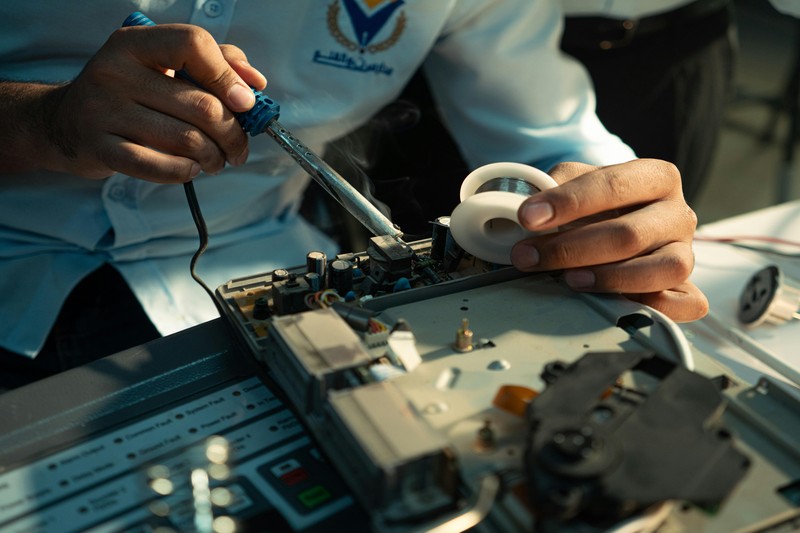
- Soldering iron + solder: For connecting wires to fan leads or JST connectors. If you prefer no-solder solutions, get a crimp tool and JST XH connectors.
- Heat shrink tubing: To insulate soldered connections.
- Zip ties: For cable management. Essential for keeping wires away from moving parts.
- Multimeter: To check voltage and fan polarity before plugging in.
- Buck converter (step-down module): If you are using 12V fans on a 24V printer. A simple LM2596 module works well and costs about $5.
- Fan grille (optional): If your replacement fan does not have one, a metal grille protects wires from hitting the blades.
- Printed fan duct/adaptor: Some shrouds need a printed bracket for different fan sizes.
You can find many of these in starter kits on Amazon. Look for a soldering iron kit if you do not have one.
Step-by-Step: How to Replace Your Hotend Fan
This is the most common upgrade and the one with the biggest immediate impact. Follow these steps carefully.
- Power off and unplug your printer. Wait at least 10 minutes for capacitors to discharge. Safety first.
- Remove the fan shroud. On most printers, this is a plastic piece held by 2-4 screws around the heat sink. Set it aside. If you have a Direct Drive, you might need to remove the whole carriage assembly.
- Disconnect the stock fan. Trace the wires back to the mainboard or a JST connector. Unplug it. If it’s soldered, you will need to desolder.
- Prepare your new fan. Check the voltage rating (12V or 24V). If you are using a 12V fan on a 24V printer, wire in a buck converter now. Set it to output 12V using a multimeter. If using a 24V fan, no voltage step-down is needed.
- Wire the new fan. Connect the red wire to positive (+), black to negative (-). If your fan has a yellow PWM wire, leave it disconnected unless your board supports PWM control. Solder or crimp JST connectors.
- Check airflow direction. Look for an arrow on the fan body. Air should blow away from the fan and into the heatsink. Most hotend fans are exhaust (pulling air through the heatsink). Confirm with your printer’s manual. Reversing this can cause heat creep.
- Install the fan. Screw it onto the shroud or bracket. Do not overtighten—stripped plastic holes are a common beginner mistake. Use the original screws if they fit.
- Route the cables. Use zip ties to keep the wires away from the print head and any moving belts. Pinched cables can short out or cause the fan to stop.
- Test before reassembling. Plug the fan in, power on the printer, and listen. It should spin freely. If it does not, check polarity and voltage. If it is noisy, you might have the blade rubbing against something.
- Reattach the shroud. Put everything back together. Run a test print to ensure the hotend temperature stays stable.
The whole process takes about 20-30 minutes. The first time you hear it running, you will wonder why you did not do this earlier.
Replacing the Part Cooling Fan: Duct Options and Airflow
The part cooling fan is trickier because it uses a blower fan (centrifugal) rather than an axial fan. Blowers move air sideways, so you cannot just swap in a different size without the proper duct.. For more on this, see our guide on Best Filament Dryer Review: Top Picks for Keeping Moisture Away.
Most stock printers use a 4010 or 5015 blower. Upgrading to a 5015 blower is common because it provides more airflow at lower noise. But a 5015 fan is larger, so you need a duct designed for it. Popular options include the Petsfang, the Satsana, or the Hero Me Gen7. These are free designs on Printables and Thingiverse.
If you have a direct drive printer, stick with a 4010 blower or an axial fan running through a duct. The airflow direction must match the duct design. Some ducts are designed for a specific fan orientation (blowing in from one side). Check the fan’s airflow markings.
Another common upgrade is to add a second part cooling fan in a dual-fan setup. This can improve overhangs and bridges, but it adds complexity and noise. For most users, a single high-quality 5015 blower is enough.
One mistake I see often: buying a blower fan without checking the voltage. Many 5015 blowers are 24V. If your board outputs 24V, great. If it outputs 12V (some older boards), you need a boost converter. Also, blower fans often use a 2-pin JST connector, not 3-pin. Check your board’s fan header.
Power Supply and Mainboard Fan Upgrades
These fans run 24/7, so they contribute a steady background hum. Replacing them can reduce overall noise significantly, but there are safety considerations.
Power Supply (PSU) Fan: The PSU has high-voltage components. Opening the casing is risky if you don’t know what you’re doing. The capacitors can hold a charge for minutes or hours. If you are comfortable with electronics, disconnect the mains, short the capacitors with a resistor (or wait 30 minutes), and then swap the fan. If not, consider skipping this upgrade. Some modern printers like the Ender 3 V2 and Prusa use sealed PSUs that are harder to mod.
Mainboard Fan: This is safer. The mainboard fan cools the stepper drivers. If your printer has TMC2208 or TMC2209 drivers, they run cooler than older drivers, meaning you can use a slower, quieter fan. An 80mm fan running at reduced voltage (e.g., 7V on a 12V line) moves air and is barely audible. Just make sure the fan moves enough air to keep the drivers under 60°C. You can check with a thermal camera or even a finger test after a long print.
For both upgrades, you will likely need a buck converter if the replacement fan is 12V and the source is 24V. Wire the converter to the fan header, set the output to 12V, and connect the fan. Secure the converter with a zip tie or double-sided tape inside the case.
Common Mistakes to Avoid When Installing Silent Fans
I’ve made most of these mistakes myself after doing this mod a few times. Here is what to avoid.
- Forgetting airflow direction. The most common mistake. You install the fan backwards, and the hotend overheats. Check the arrow twice before final mounting.
- Using a fan with too low CFM. Silent fans often have lower airflow. If you replace the part cooling fan with an axial fan that moves only 4 CFM, your overhangs will suffer. Stick with a blower for part cooling.
- Voltage mismatch. 12V fan on 24V supply will burn out immediately. 24V fan on 12V supply will barely spin. Always check voltage before powering up. A multimeter is your friend.
- Poor cable management. Leaving fan wires loose can cause them to get caught in the heater block or the belt. Use zip ties and cable clips. Pinched wires can short or cause intermittent fan failure.
- Stripping screw holes. The plastic shrouds and brackets are fragile. Use the correct screwdriver size and do not overtighten. If a hole strips, use a slightly larger screw or a dab of superglue to hold it.
- Using cheap fans without bearings. A $2 fan is not an upgrade. It might be quieter for a week but will rattle soon after. Invest in a quality brand or at least a MagLev bearing fan.

Voltage, Wiring, and Adapters: What You Need to Know
Most 3D printers run on 24V, but many silent fans are only available in 12V. This means you need a way to drop the voltage. The most common solution is a buck converter (step-down module). These small boards cost a few dollars and can handle 1-2 amps easily.
To wire one: connect the input (24V from the fan header) to the converter, adjust the small potentiometer until the output reads 12V on your multimeter, then connect the fan wires to the output terminals. Secure the converter with a zip tie inside the electronics compartment. Don’t let the metal terminals touch the mainboard or any metal parts.
If you prefer not to use a converter, look for 24V silent fans. Noctua does make a 24V version of the NF-A4x20, but it’s less common. GDSTime and Sunon offer 24V models. Check Amazon for 24V 40mm fans.
Another consideration is connectors. Most mainboards use JST XH 2-pin or 3-pin connectors. If your new fan comes with a different connector (like Dupont or bare wires), you can crimp on a JST connector or solder the wires to the fan header. I prefer using a JST connector for easy future swaps. A crimp tool kit makes this simple.
Beyond Fans: Other Mods for a Truly Silent Printer
If you have already swapped out your fans and still want less noise, there are a few complementary mods to consider. These aren’t necessary for most users, but they can take a printer from loud to virtually silent.
- Stepper motor dampeners or silent drivers (TMC2209). If your printer uses noisy A4988 drivers, upgrading to TMC2209 or TMC5160 eliminates stepper motor whine. This is a bigger mod that may require firmware changes, but it’s incredibly effective.
- Dampening feet. Rubber or foam feet isolate mechanical vibration from your desk. Simple squash ball feet work well. They cost almost nothing and reduce low-frequency vibration.
- Aluminum frame braces. If your printer frame is wobbly, it amplifies noise. Adding corner brackets or a stiffening brace can reduce vibration.
- Enclosure soundproofing. If you have an enclosure, you can line the inside with acoustic foam (not just egg crate foam). This absorbs high-frequency fan noise. Just make sure you do not block active cooling vents.
These mods compound well. A fully quiet printer is achievable with a combination of silent fans, TMC drivers, and proper vibration damping.
Final Thoughts: Is the Upgrade Worth It?
Absolutely. Replacing the stock fans with silent 3d printer fans is one of the best quality-of-life upgrades you can make for a home or office printer. The total cost ranges from $20 to $50 for the fans and a buck converter. For that price, you get a printer that doesn’t demand attention with constant buzzing. You can run prints overnight in the same room without annoyance. The tradeoff is slightly less airflow, but in practice, most users never notice a difference in print quality for the hotend fan. For the part cooling fan, choosing a good blower solves that problem.
If I had to recommend one single upgrade, it would be replacing the hotend fan with a Noctua NF-A4x20. It is the most effective, easiest, and most satisfying mod.
Ready to try? Compare fan prices and availability here.. For more on this, see our guide on The Best Handheld 3D Scanner for Digitizing Real Objects.